How to Completely Remove a VPN From Your Devices and Why You Might Want To
How to completely remove a VPN from your devices and why you might want to: a quick fact—sometimes, shedding a VPN is about transparency, performance, or returning to native network behavior. If you’re troubleshooting slow connections, wanting to switch providers, or just cleaning up after a trial, here’s a practical guide to remove VPNs from all your devices and why it matters.


| VPN | Obfuscation | From / month | Plan | Free plan | Refund | Alipay | UnionPay | Crypto | Website opens in China | Trustpilot | |
|---|---|---|---|---|---|---|---|---|---|---|---|
 NordVPN | Turn on manually Obfuscated Servers / NordWhisper | $3.49/mo | 27 months: $94.23 | No | 30 days | ? | ✗ | ✓ | ✓ | ✗ Blocked | 4.2/5 (51,628 reviews) |
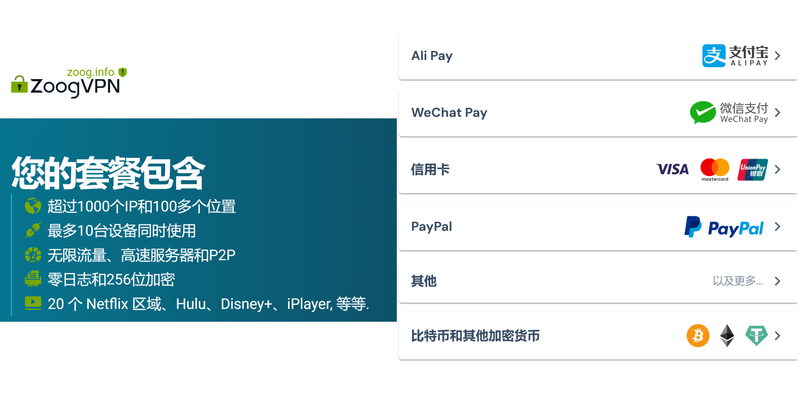
 ZoogVPN | Turn on manually Shadow | $2.49/mo | 27 months: $59.99 | Yes | 7 days | ✓ | ✓ | ✓ | ✓ | Official site blocked; our special link opens (4.4 s) | 4.2/5 (195 reviews) |
 ExpressVPN | ✓ On by default all servers | $3.00/mo | 28 months: $84 | No | 30 days | ✗ | ✗ | ✓ | ✗ | ✗ Blocked | 4.4/5 (29,706 reviews) |
 Surfshark | ✓ On by default Camouflage, with OpenVPN | See site | See site | No | 30 days | ✗ | ✗ | ✗ | ✓ | ✗ Blocked | 4.3/5 (31,823 reviews) |
 Proton VPN | Turn on manually Stealth, free plan too | $2.99/mo | 12 months: $35.88 | Yes | 30 days | ✗ | ✗ | ✗ | ✓ | ✗ Blocked | 2.1/5 (1,040 reviews) |
 Astrill VPN | Turn on manually StealthVPN / OpenWeb | $12.50/mo | 24 months: $300 | No | See site | ✗ | ✗ | ✗ | ✓ | ✗ Blocked | 1.3/5 (110 reviews) |
 Private Internet Access | Turn on manually Shadowsocks, OpenVPN only | $2.03/mo | 40 months: $81.2 | No | 30 days | ✗ | ✗ | ✗ | ✗ | ✗ Blocked | 4.2/5 (11,033 reviews) |
 CyberGhost | Turn on manually selected servers | $2.19/mo | 28 months: $61.32 | No | 45 days | ✗ | ✗ | ✗ | ✓ | ✗ Blocked | 4.0/5 (24,178 reviews) |
 PureVPN | Turn on manually switch to OpenVPN | $1.69/mo | 60 months: $101.55 | No | 31 days | ? | ? | ✗ | ✓ | ✗ Blocked | 4.4/5 (17,994 reviews) |
 AdGuard VPN | ✓ On by default TrustTunnel | $2.99/mo | 24 months: $71.76 | Yes | 30 days | ✓ | ✗ | ✓ | ✓ | Official site blocked; our special link opens (3.7 s) | 4.3/5 (290 reviews) |
 Mullvad | Turn on manually QUIC / Shadowsocks / LWO | $5.61/mo | €5/mo | No | 14 days | ✗ | ✗ | ✗ | ✓ | ✗ Blocked | 3.2/5 (192 reviews) |
 Windscribe | Turn on manually Stealth / WStunnel | $5.75/mo | 12 months: $69 | Yes | See site | ✗ | ✗ | ✗ | ✓ | ✗ Blocked | 4.7/5 (13,355 reviews) |
 StrongVPN | Turn on manually Scramble, OpenVPN TCP | See site | See site | No | 30 days | ✓ | ✗ | ✗ | ✗ | ✗ Blocked | 4.4/5 (2,695 reviews) |
 LightXtreme 闪连 | Not listed | $7.08/mo | 12 months: $84.99 | Yes | 30 days | ✓ | ✓ | ✓ | ✓ | ✓ Yes (3.5 s) | No page |
Prices checked 2026-11-10 on each vendor's pricing page (cheapest long plan, USD). Check the vendor's checkout for the final price.
Obfuscation checked 2026-11-14 on each vendor's site and help center: "on by default" = nothing to set; "turn on manually" = switch protocol or mode in settings; "not listed" = the vendor describes no obfuscation.
Payment methods checked 2026-11-10 on each vendor's payment pages: all 14 take cards and PayPal; ✗ = not listed, ? = the vendor's own pages disagree.
China access: whether the official website opens from mainland China networks (tests the website only, not the VPN connection). Last checked 2026-11-18 01:02 Beijing time.
Trustpilot score and review count checked 2026-11-10.
If you’re wondering how to completely remove a VPN from your devices and why you might want to, you’ve come to the right place. Think of this as your go-to removal checklist, with steps you can follow in minutes. Here’s a concise primer you’ll actually use:
- Quick facts: VPNs can leave residual apps, profiles, and settings that continue to affect your network traffic even after you uninstall the app.
- Why remove? You might be swapping providers, fixing conflicts with firewalls, or needing native IP routing for business apps.
- What you’ll learn: a step-by-step removal process for Windows, macOS, iOS, and Android, plus browser-level removals, router considerations, and post-removal checks.
- Real-world tips: restarting devices, double-checking DNS settings, and knowing when to reset network preferences.
Useful resources text only: Apple Website - apple.com, Microsoft Support - support.microsoft.com, Mozilla VPN support - support.mozilla.org, Android Help - support.google.com, NordVPN support - nordvpn.com/support
What you’ll need before you start
Before diving in, gather these quick items:
- Your devices Windows PC, Mac, iPhone/iPad, Android phone/tablet.
- A stable internet connection to verify removal steps after completion.
- Administrative access on desktop devices.
- Your new network setup ready e.g., default DNS or your preferred VPN alternative if you’re planning to switch.
General approach: remove, clean, verify
A solid removal usually involves three stages:
- Uninstall the VPN app or client.
- Remove associated profiles, certificates, and browser extensions.
- Verify the connection returns to normal without VPN routing.
Here’s a high-level checklist you can follow, with device-specific steps afterward.
- Uninstall the VPN app from each device.
- Remove any device or system profiles especially on macOS and iOS.
- Delete VPN-related browser extensions or add-ons.
- Clear DNS cache and reset network settings where necessary.
- Reboot the device and test your connection without VPN.
- If you used a VPN for ad/tracking blocking, reset any related UI settings in your browser.
Table: Device-wide removal steps at a glance
| Device | Key steps |
|---|---|
| Windows | Uninstall app, remove VPN adapters, clear DNS cache, check network settings, restart, test |
| macOS | Quit app, remove profiles in System Preferences, delete configuration profiles, clear DNS cache, restart |
| iOS | Delete app, remove VPN configuration profiles, reboot, test |
| Android | Uninstall app, remove VPN in Network settings, reset VPN permissions, reboot, test |
Windows: how to remove a VPN completely
- Step 1: Uninstall the VPN app
- Open Settings > Apps > Apps & features.
- Find your VPN app, select Uninstall, follow prompts.
- Step 2: Remove VPN adapters
- Open Control Panel > Network and Internet > Network Connections.
- Look for items named something like “WAN Miniport” or related VPN adapters. Right-click and Disable or Uninstall.
- Step 3: Clear DNS and reset network settings
- Open Command Prompt as administrator and run:
- ipconfig /flushdns
- ipconfig /release
- ipconfig /renew
- Open Command Prompt as administrator and run:
- Step 4: Check for leftover services
- Press Win + R, type services.msc, press Enter.
- Look for services named after the VPN. Stop and disable if present.
- Step 5: Reboot and verify
- Reboot, then visit a site like whatismyipaddress.com to confirm your IP is back to normal.
Tip: If you used a corporate VPN profile, you might also need to remove a VPN policy from Local Group Policy or registry entries. If you’re unsure, follow up with your IT department to avoid breaking access. Award vpn com review is this free vpn worth your time in 2026
macOS: how to remove a VPN completely
- Step 1: Quit the app and remove the configuration
- Open the VPN app and quit it.
- Go to System Settings or System Preferences > Network.
- Remove the VPN connection by selecting it and clicking the minus - button.
- Step 2: Remove profiles and certificates
- Open Keychain Access and search for VPN-related certificates. Delete if you’re sure they’re no longer needed.
- Open System Preferences > Profiles if present and remove any VPN or configuration profiles.
- Step 3: Clear DNS cache
- Open Terminal and run: sudo killall -HUP mDNSResponder
- Step 4: Restart and test
- Reboot your Mac and test your connection by visiting an IP-check site.
Extra tip: Some VPNs install helper apps that create launch agents. Check under /Library/LaunchAgents and /Library/LaunchDaemons for any VPN-related plist files and remove them if you’re confident they’re no longer needed.
iOS: how to remove a VPN completely
- Step 1: Delete the VPN app
- Long-press the VPN app icon, tap Remove App, then Delete App.
- Step 2: Remove VPN configurations
- Go to Settings > General > VPN & Device Management or VPN and remove any existing VPN configuration.
- Step 3: Reboot and test
- Restart the device, then test by visiting a site that shows your public IP.
Boss tip: Some VPNs push a system profile that remains even after uninstall. If you see a “VPN” toggle still present, remove it from Settings > General > VPN & Device Management.
Android: how to remove a VPN completely
- Step 1: Uninstall the VPN app
- Open Google Play Store > My apps & games > Installed, find the VPN app and uninstall.
- Step 2: Remove VPN in Settings
- Settings > Network & internet > VPN. Tap the gear icon next to the VPN and Disconnect, then Forget.
- Step 3: Clear browser data that might still route through VPN-like extensions
- Open Chrome or your browser > Settings > Privacy > Clear browsing data.
- Step 4: Reboot and verify
- Restart, then verify your IP address.
Note: Some devices allow a “Private DNS” or “Always-on VPN” setting that lives separate from the app. Make sure those are disabled or set back to automatic.
Router-level VPNs: if you configured VPN on your router
If you’ve been using a VPN at the router level, you’ll want to disable it there as well:
- Access your router’s admin page usually 192.168.0.1 or 192.168.1.1.
- Look for sections like VPN, VPN Client, or OpenVPN/Tunnel settings.
- Disable or delete the VPN profile, then save changes.
- Reboot the router and verify devices reconnect via normal IPs.
Why you might want to remove a VPN from your router: Gm vpn login your step by step guide to accessing gms network: Quick Start, Tips, and Best VPN Picks
- You’re troubleshooting conflicts with smart devices or IoT.
- You’re returning to a standard home network for gaming or streaming.
- You want to re-rate your ISP’s speed and latency without VPN overhead.
Browser extensions and DNS considerations
- Remove VPN browser extensions
- Chrome: Settings > Extensions → Remove the extension.
- Firefox: Extensions & Themes → Remove the extension.
- Edge: Extensions → Remove the extension.
- Clear DNS cache in your browser
- Some browsers cache DNS results; clearing helps ensure no stale routes remain.
- Reset DNS settings if needed
- macOS: Network settings > Advanced > DNS, remove VPN-specific DNS entries.
- Windows: Control Panel > Network and Internet > Network Connections > your active connection > Properties > Internet Protocol Version 4 TCP/IPv4 > Obtain DNS server address automatically or set to a preferred DNS.
Post-removal checks to ensure clean slate
- Verify IP and DNS
- Use websites like whatismyipaddress.com or dnsleaktest.com to confirm your IP is back to normal and there are no DNS leaks.
- Test essential services
- Sign into your email, streaming services, and banking apps to ensure no login blocks or unusual prompts.
- Check for leftover files
- On Windows, search for “vpn” in AppData and ProgramData to ensure no stray files are left behind.
- Network performance test
- Run a quick speed test to compare performance before and after removal. If you’re planning to switch providers, you’ll have a baseline.
Common issues and quick fixes
- Issue: IP still shows VPN
- Cause: Residual VPN adapters or profiles. Fix: Remove adapters, delete profiles, and reboot.
- Issue: DNS leaks after removal
- Cause: Custom DNS entries. Fix: Reset DNS to automatic or set your preferred DNS cleanly.
- Issue: Apps crash or refuse to connect
- Cause: Network settings still routed through VPN. Fix: Recheck the router and device settings, ensure VPN is disabled.
VPN vs no VPN: when to keep or drop
- Keep VPN if:
- You need to access geo-restricted content securely on public Wi-Fi.
- You’re protecting sensitive data on unsecured networks.
- Drop VPN if:
- You need the lowest possible latency for gaming or streaming in your region.
- Your routine doesn’t require extra privacy layers and you trust your network.
Affiliate recommendation contextual
If you’re exploring VPN options and want a quick, trusted gateway, consider checking NordVPN’s offerings through this link: https://go.nordvpn.net/aff_c?offer_id=15&aff_id=132441. It’s a good way to compare features, pricing, and performance while you’re deciding on keeping or removing VPN services.
Frequently Asked Questions
Can I remove a VPN without losing internet access?
Yes. Removing a VPN should restore your normal routing, but you may need to reset DNS or network adapters if you experience hiccups.
Do I need to reboot after removing a VPN?
A reboot helps ensure all residual settings are cleared and your network returns to normal.
Will my IP address change back automatically after removal?
Often, yes. Your IP should revert to your ISP-assigned address once the VPN tunnel is closed.
How do I know if a VPN left behind a profile?
On Windows, look for network adapters or profiles named after the VPN. On macOS, look in System Preferences > Network or Profiles. On iOS/Android, check VPN settings in Settings. Unpacking NordVPN DNS What You Need to Know for Privacy Speed and Beyond
Can I remove a VPN from a router without rebooting?
Most routers don’t require a full reboot, but a quick reboot ensures changes take full effect.
Are there privacy risks after removal?
If you had DNS leaks or misconfigured DNS before removal, you might have temporary privacy concerns. Verify with a DNS leak test and reset DNS.
Should I clear browser data after removing a VPN?
If you used the VPN to route browser traffic or if the VPN installed extensions, clearing browser data helps ensure no cached routes interfere.
How do I remove VPN-related extensions from my browser?
Go to your browser’s Extensions or Add-ons page and remove any VPN-specific extensions.
What if I want to switch to a different VPN after removal?
Install the new VPN, go through its setup prompts, and verify it’s routing traffic as expected with a test site. Openvpn Not Working On Windows 11 Here’s How To Fix It Fast
Will corporate VPNs complicate removal?
Yes. Corporate policies might push a device-wide profile. If you’re on a work device, follow your IT department’s removal guidelines to avoid compliance issues.

Lior Underhill has been writing about consumer technology since 2018, with bylines covering P2P networking, mobile privacy, and tracker analysis. Approaches each review by setting up the product the same way a typical reader would and recording every snag along the way.